Introduction
Getting a tattoo is one of the most personal decisions a person can make. It is a commitment that lives on your skin for life, which is why choosing the right design matters more than almost anything else in the process. For decades, people relied entirely on flash art pinned to studio walls or commissioned expensive custom work from professional artists, often spending weeks or months waiting for a concept to come together. That entire process has changed.
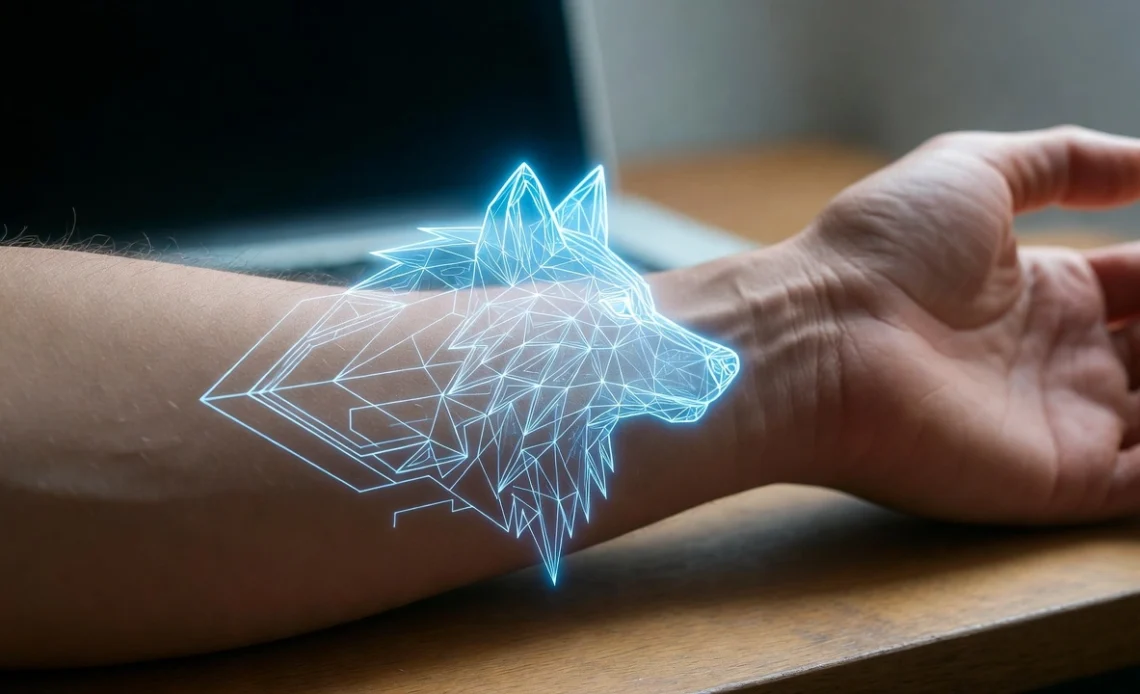
Today, you can design your own tattoo from the comfort of your home, in minutes, using powerful technology that turns your words and ideas into detailed, ready-to-use artwork. AI-powered tattoo design tools have made it possible for anyone, regardless of drawing ability or artistic background, to visualize exactly what they want before ever sitting in the tattoo chair. The result is less guesswork, better communication with artists, and ultimately, tattoos that feel completely personal.
This guide walks you through 16 ways to use these tools effectively so you can design your own tattoo with confidence, creativity, and clarity.
Start With a Clear Concept Before Opening Any Tool

The single most important step in designing your own tattoo happens before you touch a keyboard. Spend time thinking about what you want the tattoo to mean, where you want it placed, and what feeling it should carry. A wolf on your forearm means something different than a wolf on your ribcage. A minimalist lotus is a different statement than a watercolor explosion of the same subject.
Write down three to five words that describe the mood, imagery, and style you are drawn to. These notes will become the foundation of your design prompt, which is the short description you feed into an AI tattoo generator to produce your design.
Understand How AI Tattoo Generators Work
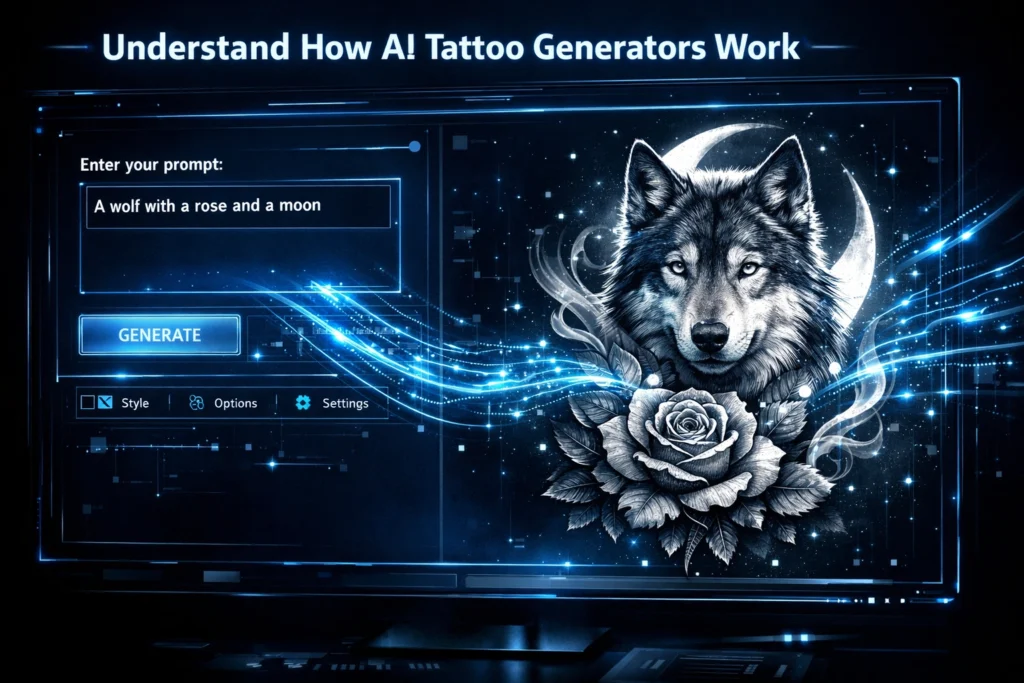
An AI tattoo generator is a tool that uses image generation technology to interpret written descriptions and produce visual artwork. You type in a description such as “geometric wolf with a crescent moon, fine line style, black and grey” and the system creates an original illustration based on those inputs.
The better your description, the more accurate and usable the output will be. These tools do not copy existing designs. They synthesize original artwork from scratch each time, which means no two outputs are identical. This is what makes them ideal for people who want something truly unique.
Choose the Right AI Tattoo Tool for Your Needs
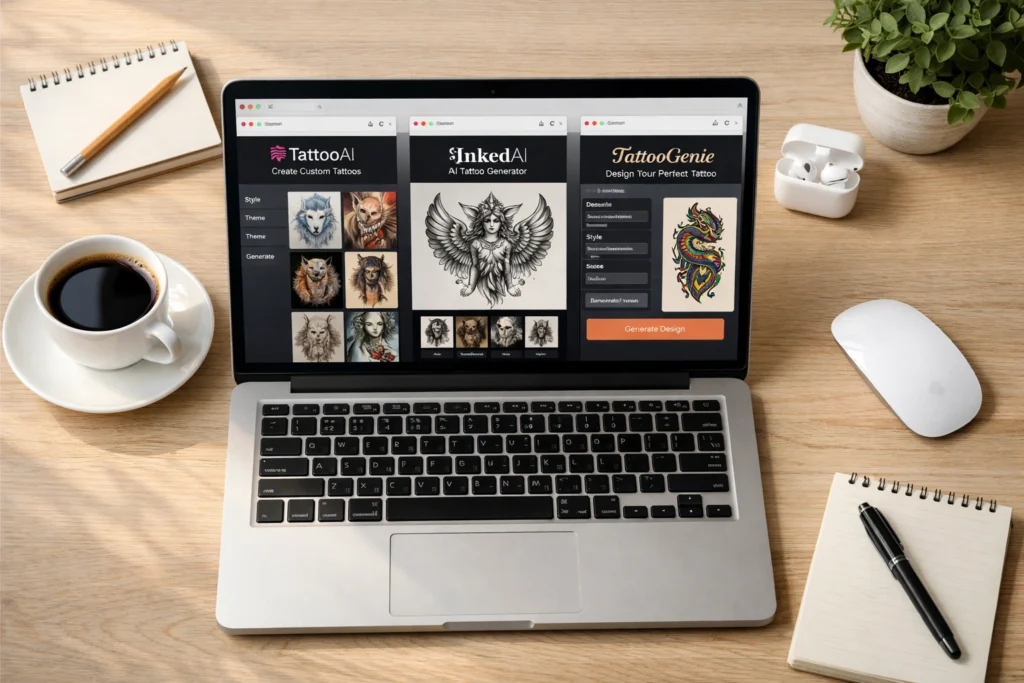
Several strong platforms exist for this purpose, and each one has distinct strengths.
Fotor offers a free online tattoo generator with a built-in virtual try-on feature that lets you upload a photo of yourself and preview how a design looks on your actual skin. Adobe Firefly produces commercially safe, high-resolution artwork that works well for detailed and realistic designs. Canva Magic Media is beginner-friendly and lets you choose from style presets before generating. TattoosAI focuses specifically on tattoo design with a wide range of style filters and a simple three-step process. Remaker AI is particularly strong for sleeve concepts and provides download options optimized for working with professional artists.
Each platform has a free tier, which means you can experiment across multiple tools without committing to a subscription before you find the one that fits your workflow.
Write a Prompt That Gets Results
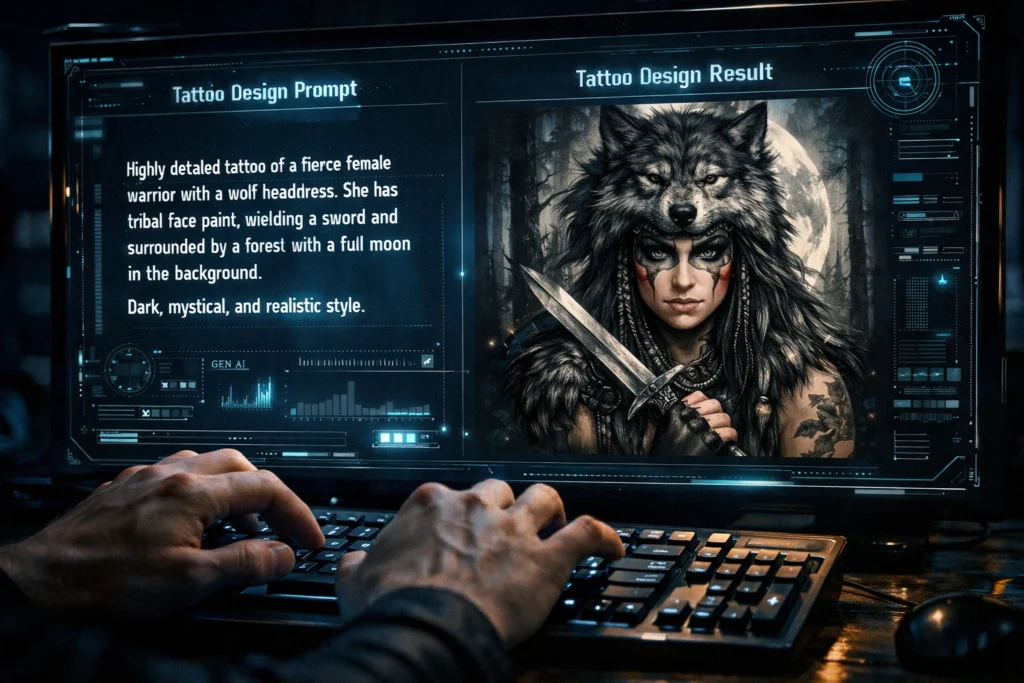
Prompt writing is a skill, and it is one worth developing if you want high-quality designs. A vague prompt like “cool tattoo” will give you generic results. A specific prompt like “Japanese-style koi fish swimming upward through lotus flowers, bold outlines, black and red ink, designed for an upper arm sleeve” will give you something you can actually work with.
The most effective prompts include four elements: the main subject, the visual style, the color palette or ink type, and the intended placement on the body. You do not need to be poetic. You need to be precise.
Explore Tattoo Styles Before You Commit
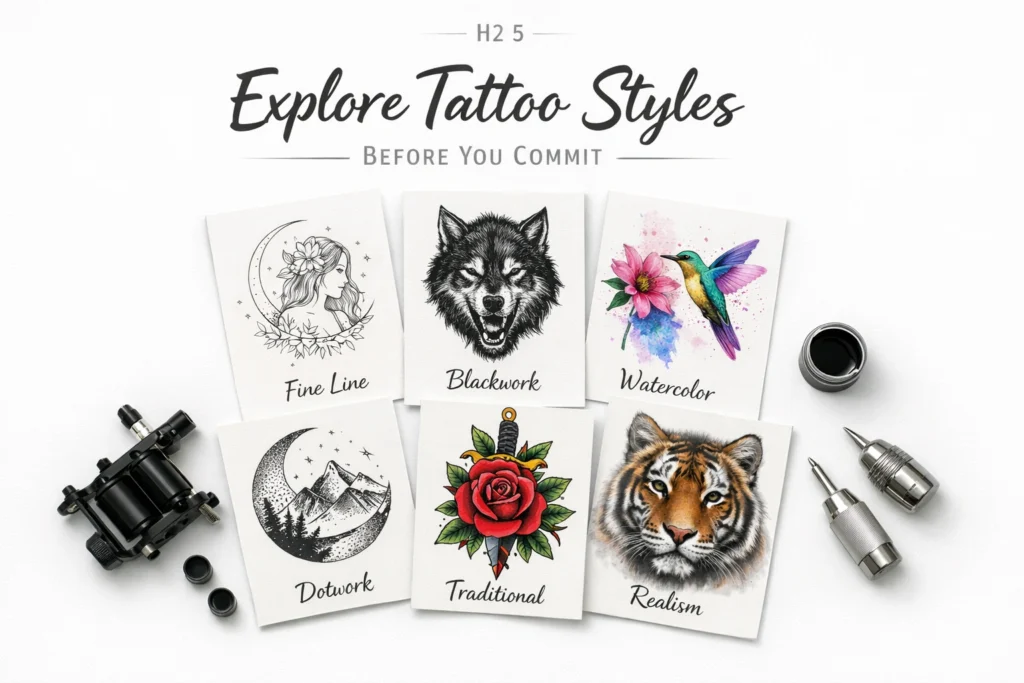
One of the greatest advantages of using an AI tool is the ability to see the same concept rendered in completely different styles within seconds. Before settling on a direction, generate your idea in several styles so you can compare them side by side.
Common styles to explore include fine line, which uses delicate, thin strokes for an elegant and understated look. Blackwork uses bold, heavy black ink and is known for high contrast and strong visual impact. Watercolor tattoos mimic the soft, bleeding edges of painted artwork and often include color gradients. Dotwork builds images from thousands of tiny dots and is particularly effective for geometric and mandala designs. Traditional tattoos feature thick outlines, bold colors, and classic motifs. Realism creates portraits and natural subjects with photographic precision.
Trying multiple styles in the design phase costs nothing and could save you from choosing a direction that does not suit you.
Use Reference Images to Guide the AI
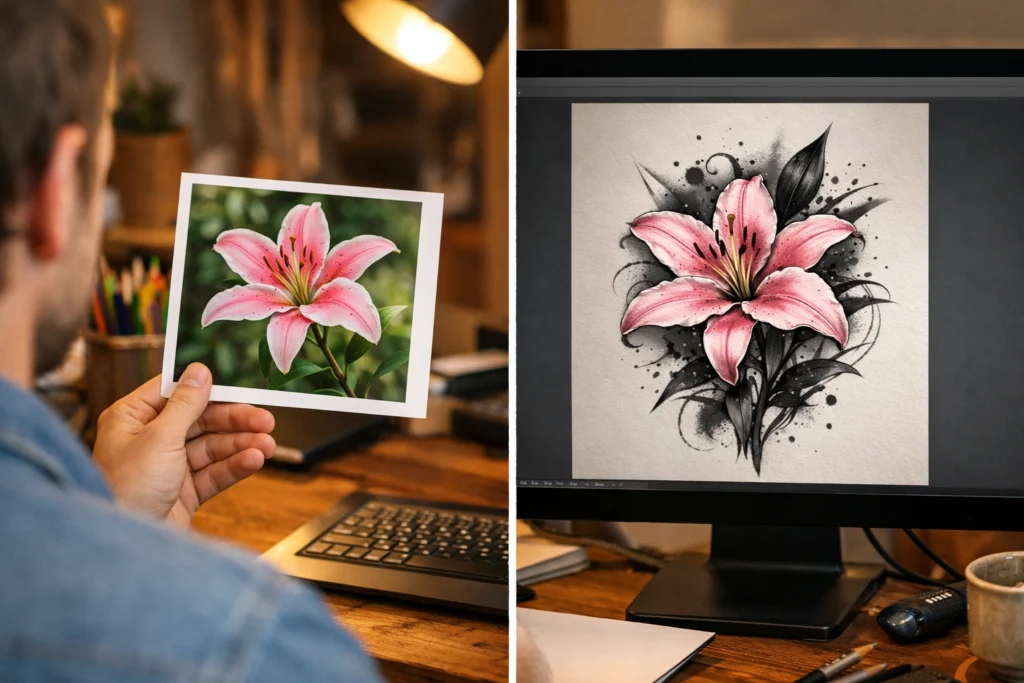
Most modern AI tattoo tools allow you to upload a reference image alongside your text prompt. This is particularly useful when you have a specific element in mind, such as a particular animal pose, a symbolic shape, or a pattern you have seen elsewhere and want reimagined in tattoo form.
You do not need to upload a finished design. Even a rough sketch on paper, a photograph of a flower, or a screenshot of a texture can guide the AI toward the visual direction you have in mind. The tool interprets the image and generates something new that captures the essence without copying the original.
Generate Multiple Variations Before Deciding
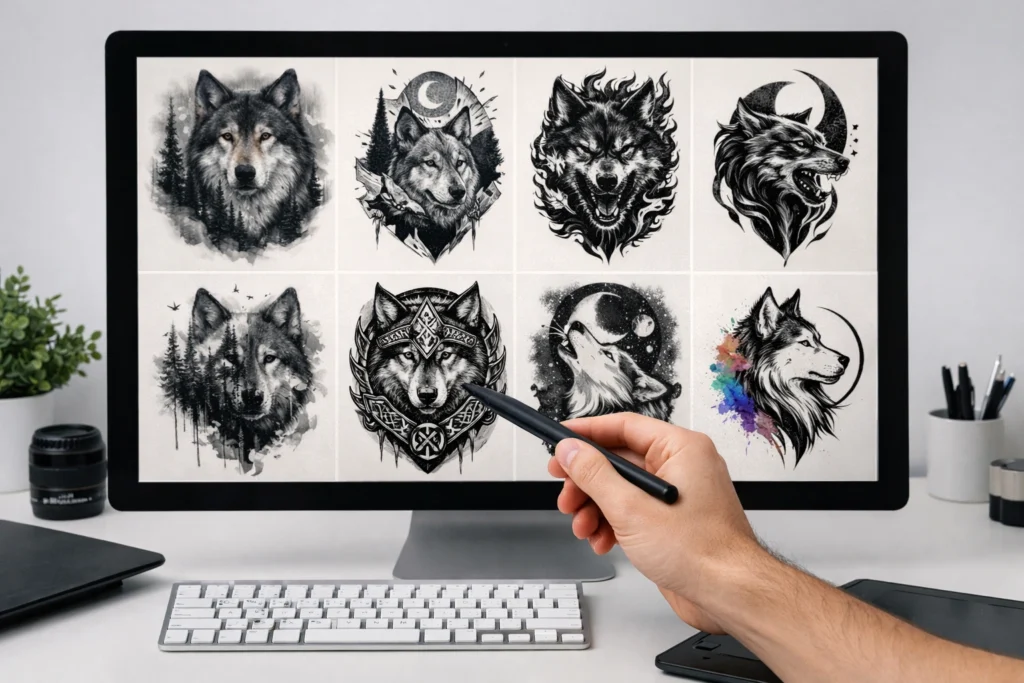
Never settle for the first output. Every AI tattoo generator produces multiple variations when you submit a prompt, and even small changes to your description can dramatically shift the results. Change one word, adjust the style, or add a detail and regenerate. Do this several times across different sittings.
You may find that the third or fourth generation of a concept is substantially better than the first, or that combining elements from two different outputs points you toward the ideal design. The tools are fast enough that iterating costs you nothing but a few extra minutes.
Design Your Own Tattoo Around Your Body Placement
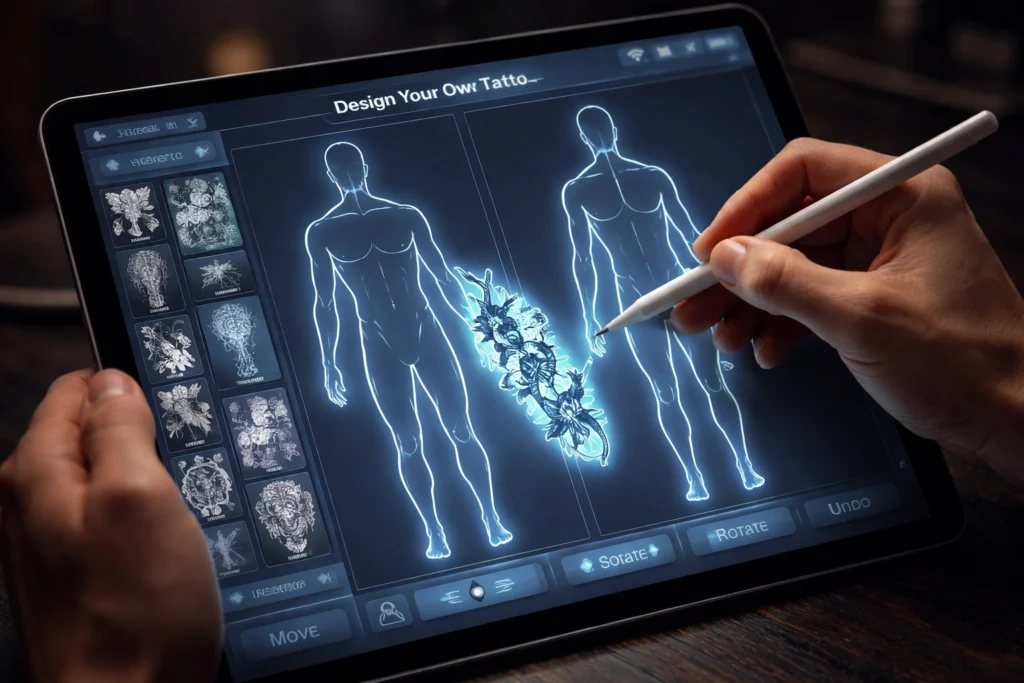
Body placement should shape the design from the beginning, not as an afterthought. A tattoo that works beautifully as a round mandala on the shoulder may not translate well to a long, narrow forearm. Conversely, a flowing vine that suits a leg perfectly might feel awkward on a wrist.
When you write your prompt, include the placement in the description. This signals to the generator the shape and orientation the design should follow. Many tools also have body placement preview features where you can digitally position the design on a body outline to visualize proportions before finalizing anything.
Try a Virtual Tattoo Simulator Before You Commit
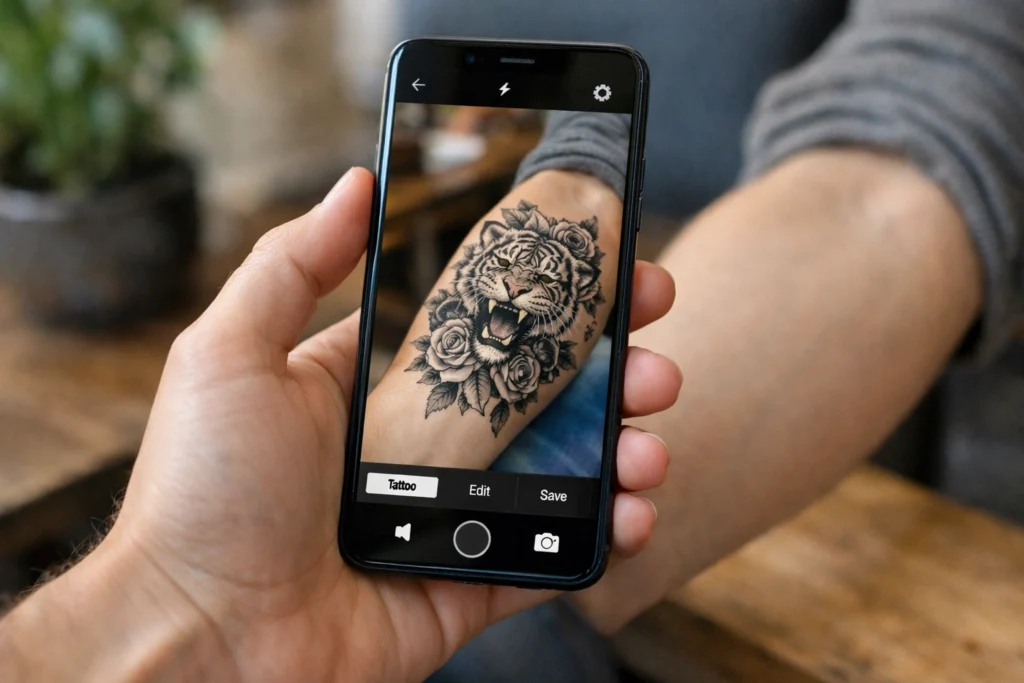
Several platforms now include tattoo simulator technology that goes beyond a simple body outline. Fotor, Tatship, and a handful of other tools allow you to upload a real photograph of yourself, overlay the generated design on the relevant body part, and see a realistic preview of how it will look on your skin.
This feature is particularly valuable for assessing how a design will read against your skin tone, how large or small it should be, and whether the placement feels right visually. Many people change their size preferences or placement decisions entirely after seeing the simulation.
Design Meaningful Text-Based Tattoos With Precision
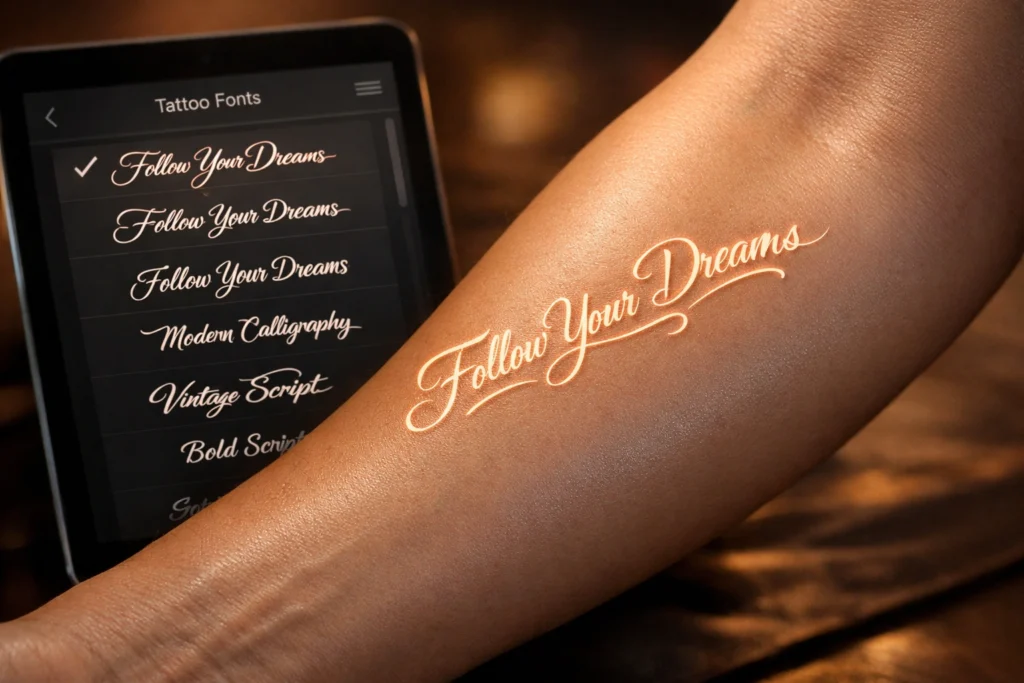
Words, names, dates, and quotes are among the most popular tattoo choices. AI tools can help you design your own tattoo around text by generating font pairings, incorporating lettering into imagery, or wrapping words around symbols in visually interesting ways.
When using a generator for text-based designs, specify the font style in your prompt. Terms like script lettering, serif font, blackletter, handwritten style, or Roman numerals all guide the output toward distinctly different results. You can also request that the text be integrated with a visual element, such as a name wrapped around a rose or a date placed beneath a compass.
Create Matching or Coordinating Designs
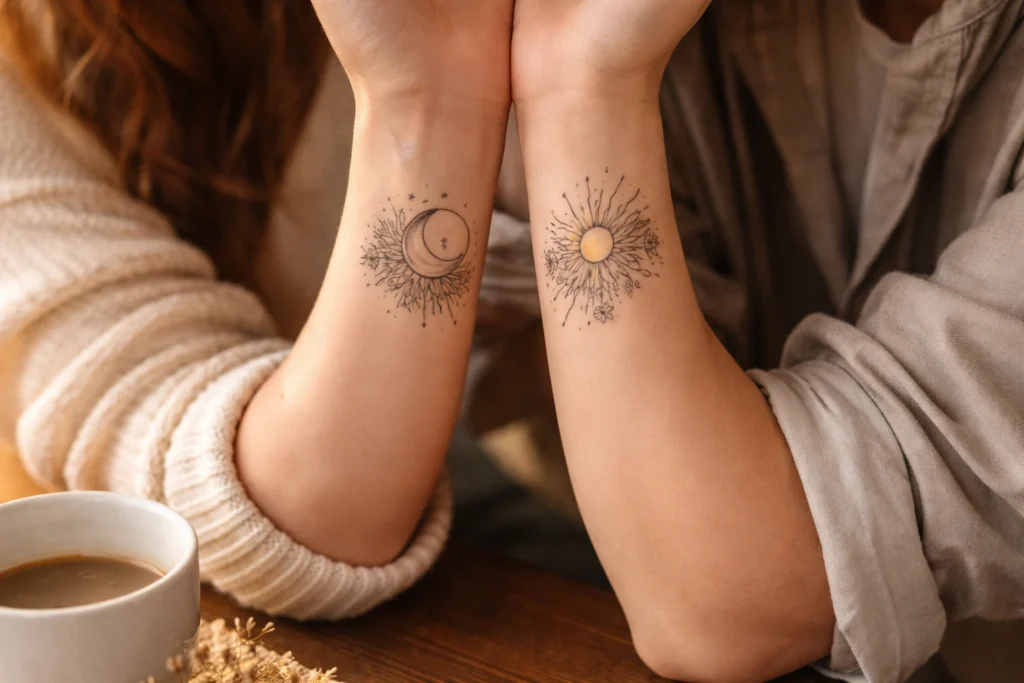
A growing trend in tattooing is coordinating designs between couples, siblings, or close friends. These are not always identical pieces. Sometimes they are two halves of an image that connect when placed side by side, or variations of a shared theme that each person adapts to their individual taste.
AI tools are excellent for this kind of project because you can keep the core prompt consistent while adjusting secondary elements for each person. Generate both designs in the same session to ensure the visual language stays coherent even as the details differ.
Refine and Edit Your AI-Generated Design
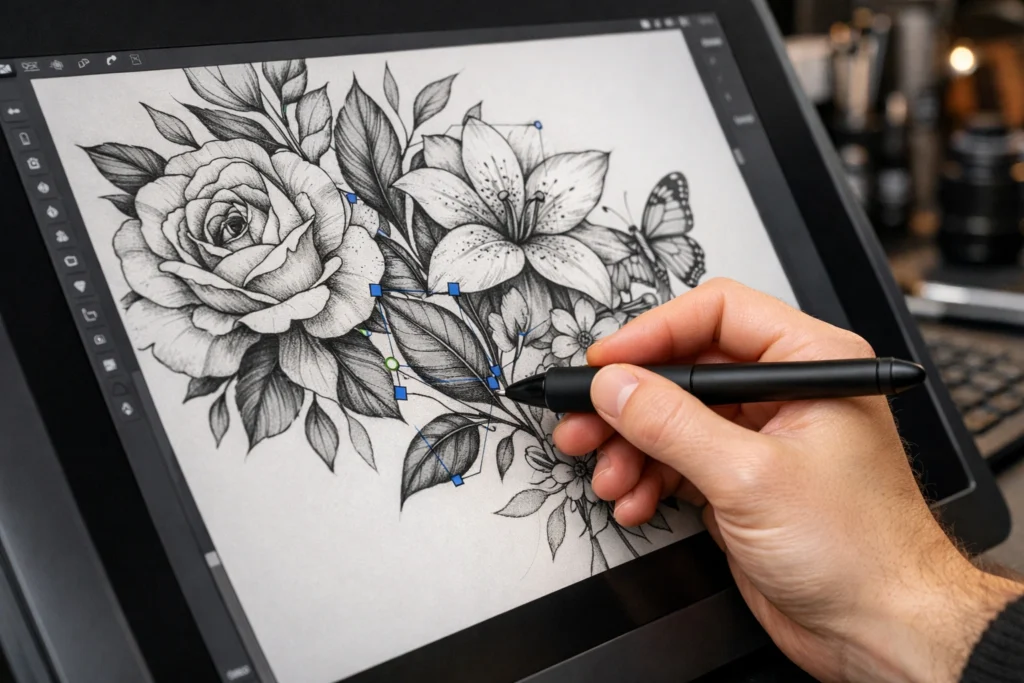
The output from an AI tattoo generator is a starting point, not necessarily a finished product. Once you have a design you like, you have several options for refinement. Tools like Canva allow you to adjust colors, resize elements, and add or remove details using drag-and-drop editing features. Adobe Firefly offers editing prompts that let you describe changes you want made to specific sections of the image.
If you want more precise control, you can download the generated image and bring it into a dedicated design application to make manual adjustments. Some generators export files in formats that tattoo artists can use directly, which simplifies the handoff considerably.
Work With Your Tattoo Artist Using AI Concepts
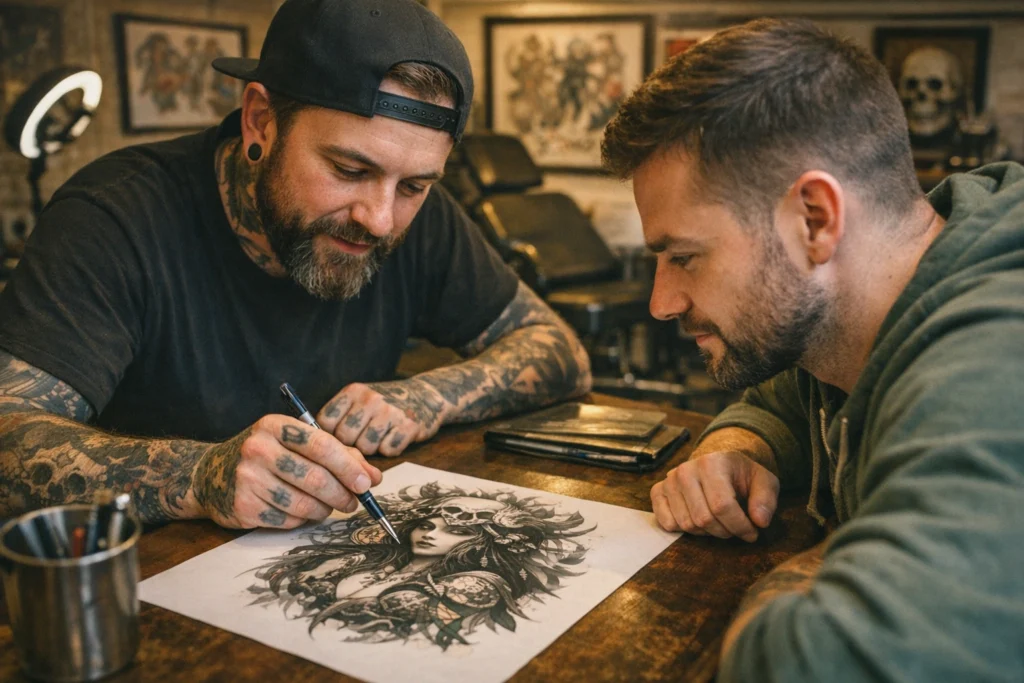
One of the most practical uses of AI-designed tattoos is as a communication tool between you and your chosen artist. Rather than trying to describe a vision in words during a consultation, you can walk in with a generated image that clearly communicates your aesthetic preferences, your chosen style, and the general composition you want.
Professional tattoo artists do not simply copy the AI image. They use it as a brief, understanding your visual direction and then applying their own technical expertise to create a piece that will hold up on skin over time. Many artists have reported that clients who come in with AI reference designs require far less back-and-forth during the consultation process, which saves time for everyone.
Consider Skin Tone and Long-Term Wear
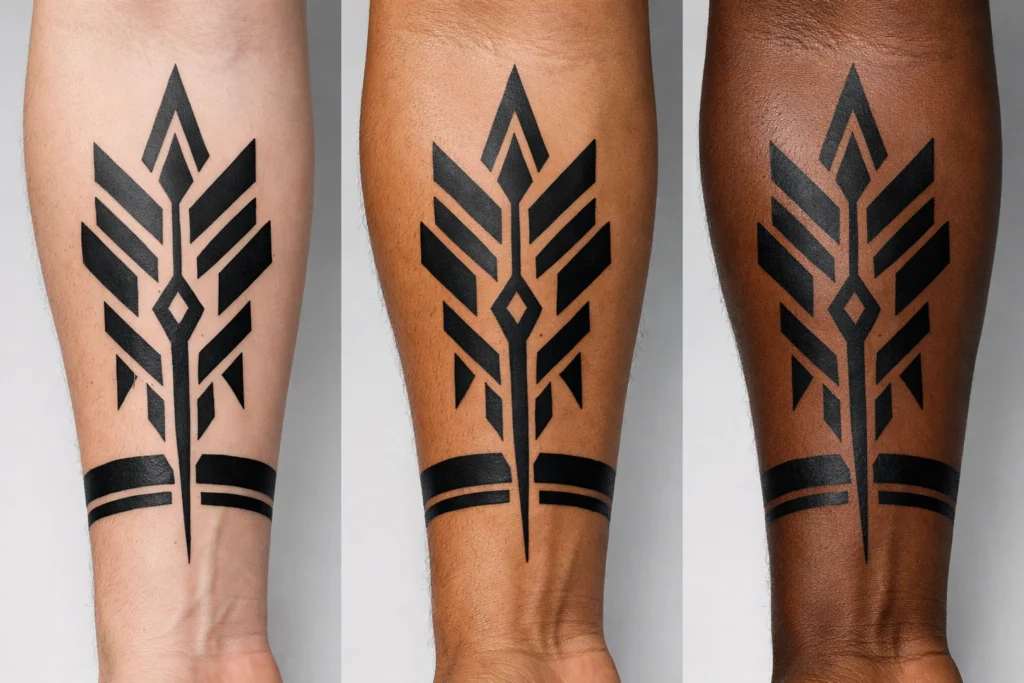
A detail that AI-generated designs do not automatically account for is how tattoo ink behaves on different skin tones over time. Lighter skin generally shows high detail and color vibrancy clearly, while deeper skin tones work better with bolder lines and higher-contrast designs. Very fine linework can fade quickly on all skin types and may require touch-ups.
When reviewing your AI-generated concept, discuss these practical realities with your tattoo artist before finalizing the design. A good artist will suggest adjustments that maintain the spirit of the design while ensuring it ages well on your specific skin.
Download Your Design in High Resolution
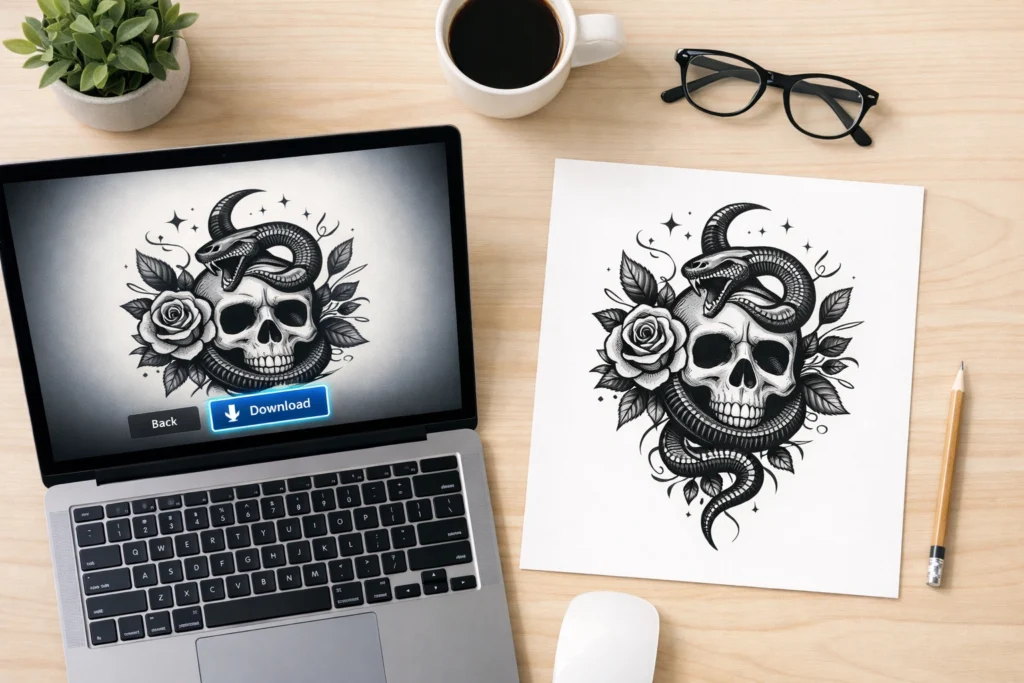
Once you are satisfied with a design, always download the highest resolution version available. Most AI tattoo tools provide PNG downloads, and some offer vector formats, which scale infinitely without losing detail. A high-resolution file ensures your tattoo artist can see fine details clearly and print the design at whatever size your placement requires.
Avoid bringing a blurry screenshot to a consultation. A clean, sharp file is a professional courtesy that makes the entire process easier for both you and your artist.
Use AI Design Tools for Temporary Tattoos First
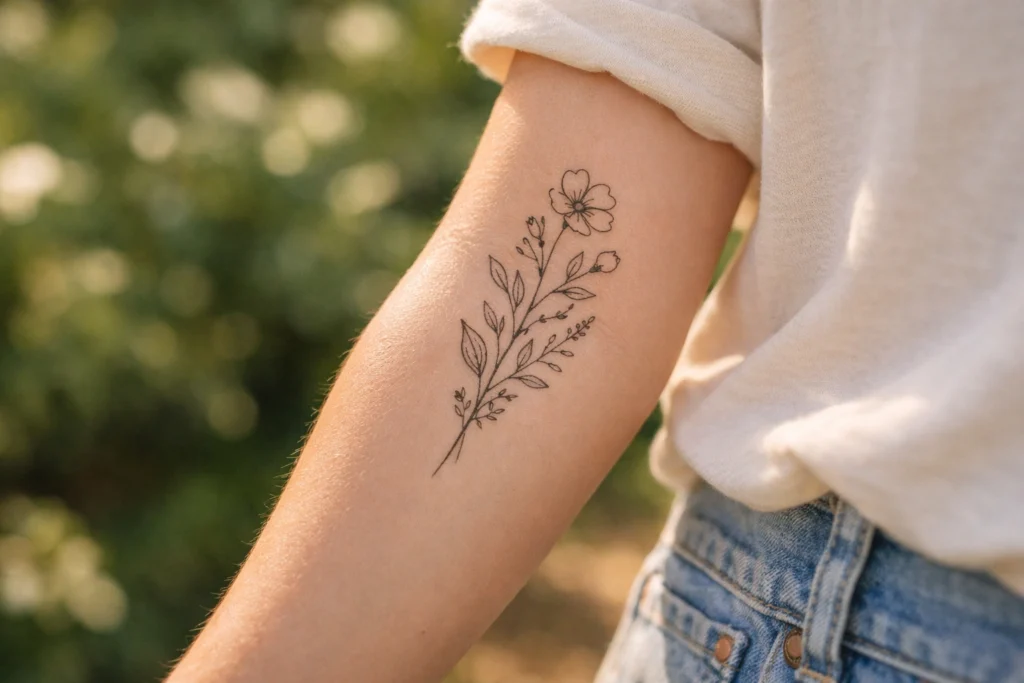
If you are still uncertain about committing to permanent ink, AI-generated designs can be used for temporary tattoos as a final test before the real thing. Print your design on temporary tattoo paper, apply it to the intended placement, and wear it for a few days. See how it feels to live with that image on your body, how people respond to it, and whether you still love it after a week.
This is perhaps the most underrated step in the entire process. Many people discover that seeing a design on their actual skin, even temporarily, reveals preferences and concerns they could not have anticipated from a screen preview alone.
Conclusion
The process of designing your own tattoo has never been more accessible or more creative. What once required either exceptional drawing skills or a significant financial investment in custom artist work can now begin in minutes using a text prompt and a free online tool. AI tattoo generators do not replace the skill of a professional tattoo artist. They replace the blank page and the uncertainty that comes with it.
By using these tools to explore concepts, test styles, experiment with placement, and generate reference material, you walk into your tattoo consultation as an informed client with a clear vision. The result is a more collaborative process, a more confident decision, and ultimately a tattoo that is genuinely, completely yours.
You may also like this post: 13 Sunflower Tattoo Meaning Explained: What This Bright Flower Represents
Frequently Asked Questions
Can I use an AI-generated tattoo design without crediting anyone?
Yes, in most cases. The major AI tattoo platforms state that designs generated by their tools belong to the user for personal use. For commercial applications, it is worth reviewing the specific terms of service for the platform you used, as policies vary.
Will a tattoo artist accept an AI-generated design as a reference?
Most professional tattoo artists welcome AI-generated images as reference material. The image gives the artist a clear understanding of your aesthetic goals, style preferences, and composition ideas. They will then adapt the concept to work technically on skin.
How detailed should my prompt be to get a good tattoo design?
Your prompt should include at minimum the main subject, the tattoo style, the ink color or palette, and the intended placement on your body. More detail generally produces better results, but avoid overloading the prompt with conflicting directions.
Are AI tattoo generators free to use?
Most major platforms offer free tiers that allow a limited number of daily generations without requiring payment. Premium plans unlock higher volumes of generations, private storage, and higher-resolution downloads. For most personal tattoo projects, the free tier is sufficient.
What is the best AI tattoo tool for beginners?
Canva Magic Media is widely considered the most beginner-friendly option because of its preset style options and familiar interface. Fotor is also excellent for beginners because it includes a virtual try-on feature that lets you preview the design on your body without any design experience.